
Winksky booth


Tuned for thermal paper
Adjust brightness, contrast, and threshold, with enhancement and inversion options. Preview the processing, make a sample print, and reprint recent shots when needed.
Photo-booth software for events and studios
Set up your booth, guide guests through capture, and print branded photos they take home. Built for Android and iOS.
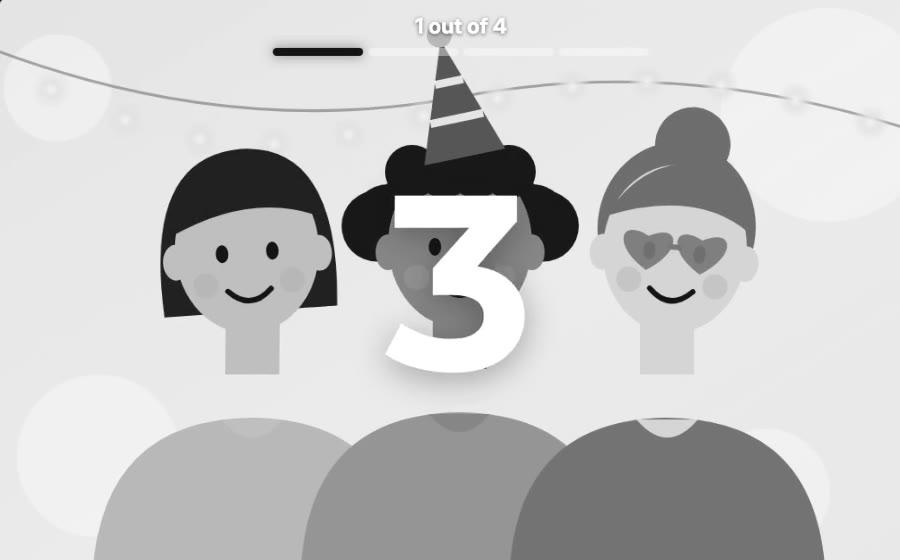


Configure the session before guests arrive, then let the experience move from welcome screen to camera, selection, and output.
Name the session, choose its layouts, add branding, and configure capture timing and printer settings.
Payment before start is optional.
Open the start screen and guide guests through the countdown and capture. Choose whether they can retake each shot.
Let guests pick photos for the layout, or fill every slot automatically and go straight to the final preview.
Print through a supported setup. Once eligible media has uploaded, guests can scan the session's QR link.
QR delivery needs uploaded files.
Every event has its own pace and presentation. Winksky keeps the session's layouts, capture settings, branding, and print preferences together.
Give the setup your attention before the event, then give guests a focused experience when it starts.
Saved sessions. Keep named session configurations ready to open and manage.
Capture timing. Adjust the ready delay, photo countdown, flash duration, and photo review time.
Guest choices. Enable retakes and photo selection to suit your booth's flow.
Session presentation. Customize the start screen and configure session branding.
Output settings. Select the printer setup and set a maximum print count for the session.
Create layouts with the slots, text, and images your design needs. Add a logo, custom text, or date details, then preview the result before guests use it.
photo strip
Winksky booth
thermal receipt
A guided sequence from the welcome screen to the finished composition, with timing and choices set by you.
Prefer fewer decisions during a run?
Disable photo selection and capture one photo for each template slot.
welcome
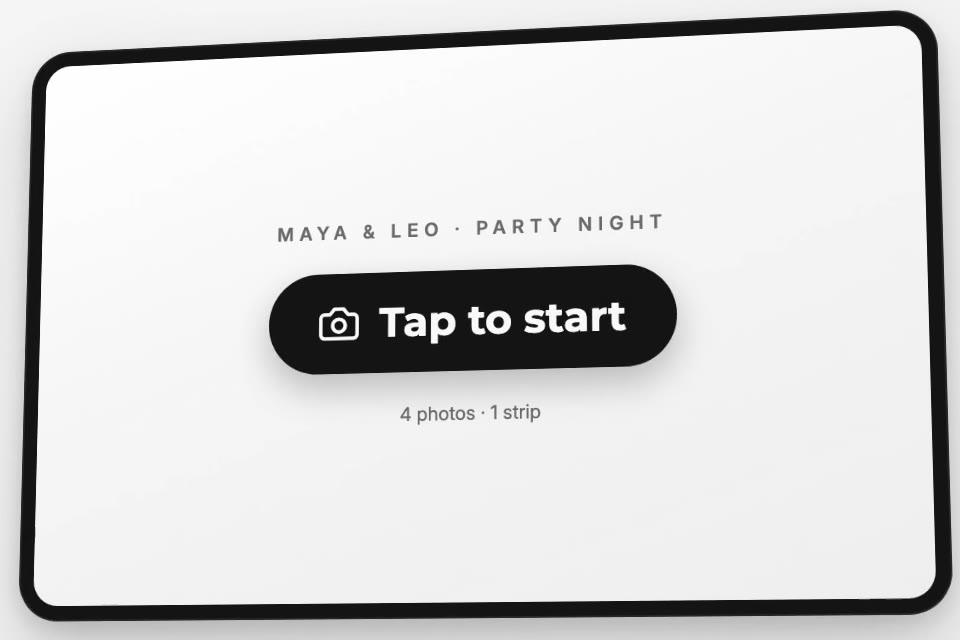
Guests tap to begin from a branded welcome screen.
3, 2, 1
Live camera preview, then a countdown so everyone is ready.
strike a pose

Let guests keep a shot or try again when retakes are enabled.
pick favorites
Guests choose which photos fill the layout and see the assembled result before printing.
Connect Winksky to a supported print setup and turn the final composition into something guests can hold. Check a sample before serving guests.
Winksky booth
Adjust brightness, contrast, and threshold, with enhancement and inversion options. Preview the processing, make a sample print, and reprint recent shots when needed.
Use a compatible Bluetooth thermal printer for receipt-style photo output.
Send output through the device's available system print service.
Use a compatible USB thermal setup where supported by the device and platform.
Configure a compatible IPP printer on your network.
Available connections and print behavior depend on your device, platform, and printer. Confirm your intended setup before an event.
Reopen completed runs in Recent Shots and reprint when needed. Each run can produce a finished still and a short MP4 from captured motion frames.
Good to know
QR downloads depend on cloud access, connectivity, and successful uploads. A shot saved only on the device is not yet available through a public download link.
Start with photos already on your device. Set the paper, add a PNG frame, arrange slots, then export a PDF or print.
Availability depends on your plan. Local editing, PDF export, and printing do not require cloud backup.
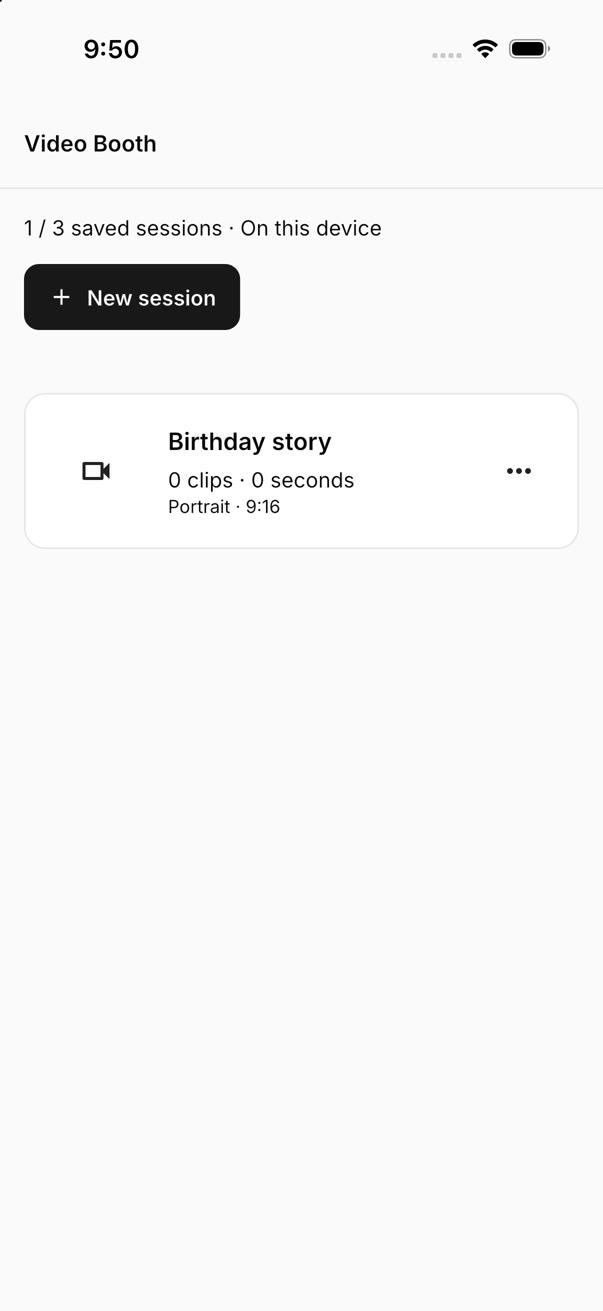
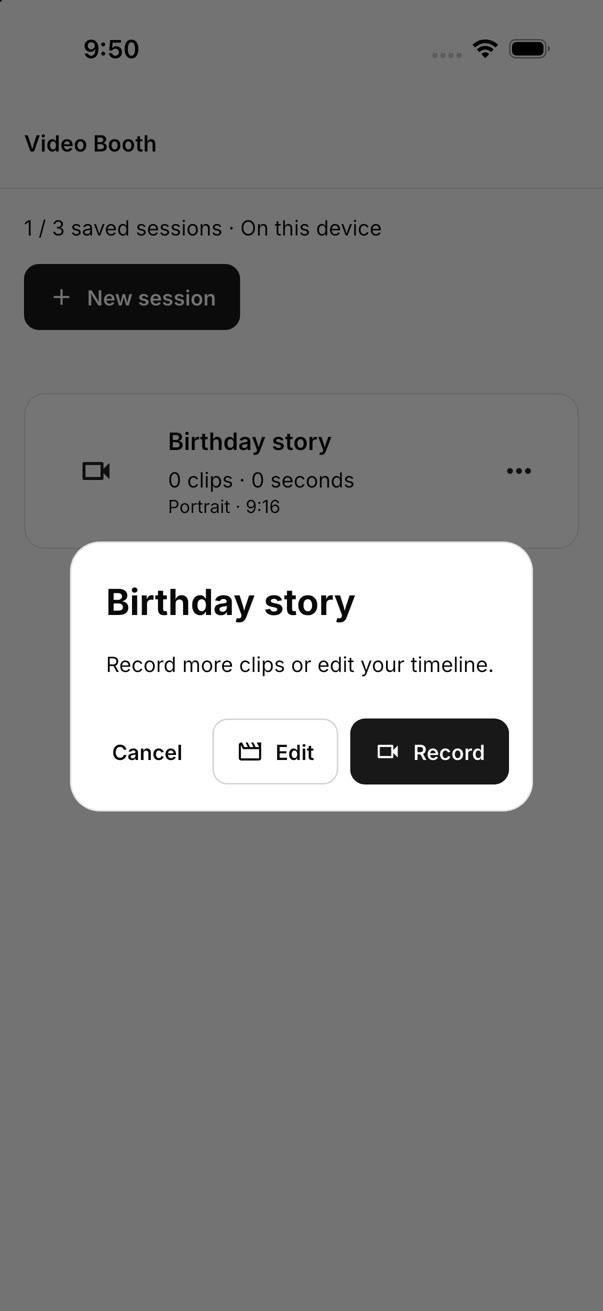
Record consecutive takes, edit them on a local timeline, and export an MP4 to the device gallery.
Availability and saved-session capacity depend on your plan. Recordings and timeline edits stay on the device they were made on and are not restored through cloud photo backup.
Winksky stores operational data locally, so enabled modules open, edit, export, and print without a cloud round trip. Cloud backup is optional and set by your plan.
Before you go offline
Initial sign-in and device activation require connectivity. Continued offline use is limited by the device's verified licence and offline access period.
Suggested workflows for the occasions booth operators run most.
Prepare an event-specific welcome screen and layout, add names or date details, and give guests a printed reminder of the day.
Bring event artwork and logos into the composition, then offer printing and eligible QR delivery at the booth.
Keep saved session configurations, control capture timing, and revisit recent shots when a print needs another copy.
Use a compatible thermal printer and tune the thermal preview for a compact, receipt-style keepsake.
Use Photo Man to frame selected gallery images and prepare a coordinated PDF for printing.
Winksky uses plan-based access for selected modules, cloud capabilities, and licensed-device capacity. Confirm what your setup needs before choosing a plan.
Setup, printing, offline work, and what each module does.
Winksky is a photo-booth operations app for Android and iOS. It brings session setup, branded layouts, guest capture, photo selection, printing, and eligible QR delivery into one workflow. Photo Man and Video Booth add print-project and video tools when included in your plan.
Photo-booth operators, event businesses, business owners, and studio staff who need to prepare and run guest photo sessions.
Enabled modules use local data for editing, capture, export, and printing while the device has valid verified offline access. Sign-in, device activation, renewed verification, online payment confirmation, cloud backup, restore, and public QR delivery need connectivity when those services are used.
No. Cloud backup and restore are optional plan capabilities. Local workflows remain available within the modules and device access your plan permits.
Yes. Layout tools support photo slots, text, and image elements. Session branding can include a logo, custom text, and date details.
Yes, when those options are enabled for the session. You can also disable photo selection and capture one photo per template slot before continuing to the final preview.
The app includes system printing, Bluetooth thermal, USB thermal, and network IPP print paths. Compatibility depends on the printer, connection, device, and platform. Verify the exact setup you intend to use.
Yes, for eligible uploaded media. The QR link provides access to files that are available online. Files saved only on the booth device still need a successful upload before they can be downloaded publicly.
Photo Man turns gallery photos into print projects. Choose paper dimensions, add a PNG frame, place photo slots, adjust images, and export selected pages as a PDF or print them.
Video Booth records takes and provides a local timeline editor with video, overlay, audio, and text tools. Export the completed sequence as an MP4 to the device gallery. Module access and saved-session capacity depend on the plan.
No. Source recordings and timeline edits remain on the original device. Optional cloud session setup does not include those clips and edits.
The app implements payment-required sessions using configured PayMongo QR identifiers and a session price. This workflow relies on online payment confirmation. Confirm account setup and availability before using it at an event.
The confirmed product targets are Android and iOS. Desktop and browser availability have not been established for this page.
Bring your layouts, capture flow, and printing together in one app built for the people running the booth.
Explore the workflowWinksky booth